📘 R|Trader Pro – Complete User Guide
R|Trader Pro is the official application provided by Rithmic that allows traders to monitor account balances, manage orders, configure risk parameters, and ensure accurate broker-level tracking of executions. This guide walks you through the essential features with practical examples and screenshots.
⬇️ Download R|Trader Pro
You can download the latest version of R|Trader Pro directly from the official Rithmic website using the link below:
Download R|Trader Pro1. Logging into R|Trader Pro
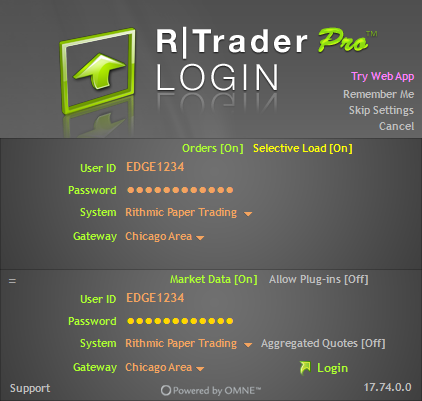
When you launch R|Trader Pro, the login window will appear. Enter your User ID and Password. From the System dropdown, select Rithmic Paper Trading (or Live if applicable). Choose a Gateway (commonly Chicago Area) and ensure Orders and Market Data are set to On. Then click Login.
2. Navigating the Main Menu
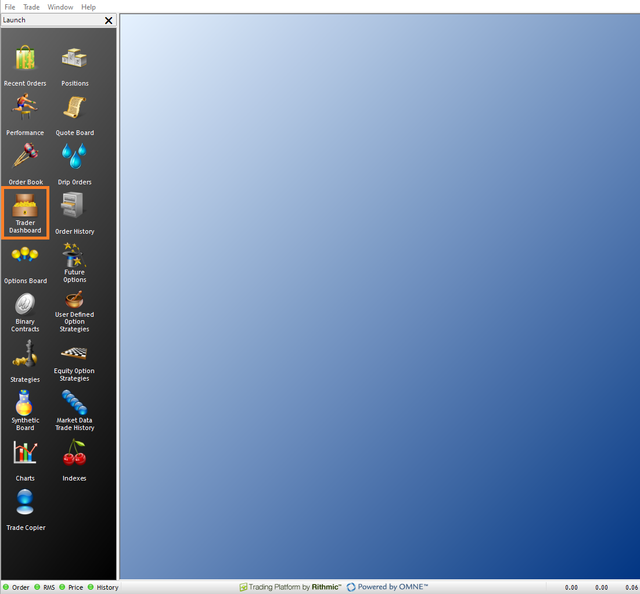
After login, the left-hand panel provides access to all modules: Trader Dashboard, Positions, Recent Orders, Order History, Risk Parameters, Charts, Trade Copier and more. Use these tools to monitor your account and manage trading activity at the broker level.
3. Trader Dashboard
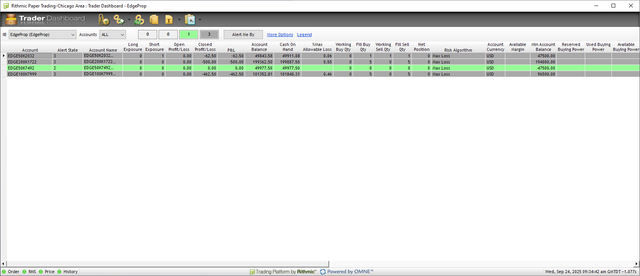
The Trader Dashboard displays all key account information, including:
- Account balance and cash on hand
- Open and closed profit/loss
- Net position and working orders
- Risk algorithm and maximum allowable loss
This module is essential for monitoring overall account health and exposure.
4. Viewing Risk Parameters
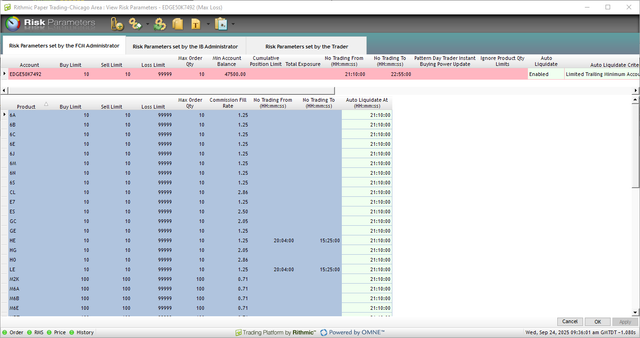
To view account risk limits, right-click on an account in the Trader Dashboard and select View Risk Parameters. This screen provides details such as:
- Product-level buy/sell limits
- Loss limits and commission rates
- Trading time restrictions
- Auto-liquidation schedules
You may configure Auto Liquidate to flatten positions at a specific time each day. Be sure to click Apply after making any changes.
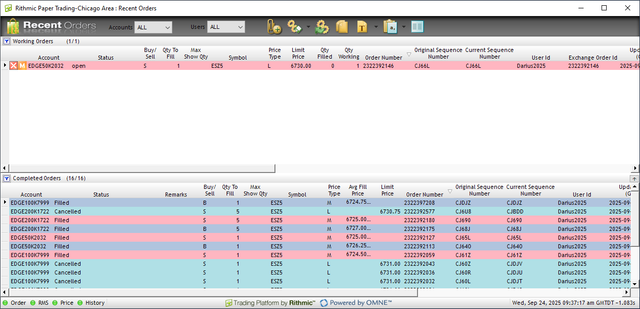
5. Monitoring Recent Orders
The Recent Orders window displays both working and completed orders. Here you can review:
- Open (working) orders
- Filled, canceled, or rejected orders
- Order attributes such as type, symbol, price, quantity, and timestamps
This module is critical for verifying execution accuracy and tracking order flow.
6. Cancelling Orders
To cancel an order, click the red X next to the order in the Recent Orders tab. You will be prompted with a confirmation window. Select OK to proceed.

- Auto-liquidation settings should be used cautiously and verified daily.
- The Trader Dashboard is fully customizable – right-click column headers to add/remove fields.
- R|Trader Pro provides the broker-level record of trades. If executions are missing on your trading platform, always verify here.
✅ Conclusion
R|Trader Pro is a vital tool for professional traders. By using the Trader Dashboard, Risk Parameters, and Recent Orders, you maintain full visibility and control over your trading accounts. For advanced setups, you may also use Trade Copier to replicate trades across multiple accounts.